We have previously announced the deprecation of Key 100
Removing support for Tosibox Key 100 is critical to safeguarding data integrity and confidentiality. Our experts are here to help you navigate the transition and maintain a secure, reliable infrastructure.
Tosibox is fully retiring support for Key 100
To ensure the security of Tosibox customers, Tosibox is fully retiring support for Key 100. Key 100 tokens use older security ciphers and algorithms, and some of them (e.g., SHA-1) no longer meet modern security requirements.
Moving to Key 200 allows Tosibox to provide customers with the most advanced and reliable protection against potential threats.
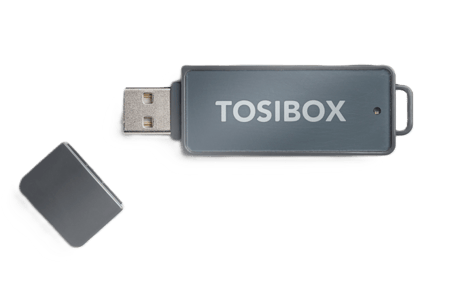
Starting from Tosi Client 4.4.1, Key 100 will no longer be usable. This means Key 100 users will not be able to use Tosi Client desktop software to connect to Gateways, or control them, or use associated SoftKeys and MobileKeys (keys linked to your Key 100 token).
How to identify if my key is affected?
Please check the label on the back of your product. Just below the EAN code, you'll find a combination of letters and numbers. The first letter of this code indicates the product type.
- If the code starts with the letter “B”, your key is Key 100 and is affected and no longer supported.
- If the code starts with the letters “EA”, your key is Key 200 from an early batch and is also affected and no longer supported due to the same security issue as Key 100
FAQ - End of Product Support for Tosibox Key 100
Starting from Tosi Client v. 4.4.1, Key 100 will no longer function with the app.
How do I know if any of our Keys are impacted?
You can identify if your key is impacted by checking the label on the device. If the serial number (under the barcode) starts with a letter “B”, then you have a Key 100 and are impacted. If the code starts with the letters “EA”, your key is Key 200 but is also affected and no longer supported due to the same security issue as Key 100.
Key 100 with serial “BD11463”
If your device does not have a label and is made of plastic, like the image below, it is very likely a Key 100.
Key 100 without labels
How to migrate from Key 100 to Key 200?
After purchasing a new Key 200 as a replacement, use the Key software to make it a Backup key of your Key 100. Follow the instructions provided in the following article to create the Backup Key: Instructions on how to create a Backup Key.
After making Key 200 a Backup Key of the original Key 100, verify that the new Key has all necessary access rights, sees all physical Sub Keys and SoftKeys, and shows the correct total SoftKey license count.
If you onboarded your Key to TOSICONTROL, log in to TOSICONTROL using the old Key 100 to ensure everything is synced.
If everything is in place, you can safely remove the original Key from the environment. To do this, log in with a Key 200 Master Key, go to Devices > Manage Keys > Backup Keys, select the Key 100 and click "Remove".
How to move my SoftKeys to the new Key?
SoftKeys will automatically be synced to the new Key. To avoid any issues, it is important to double check that all SoftKeys are available on the new Key. In case of issues, contact Tosi Support after making your new Key 200 a Backup Key of Key 100. Be prepared to provide the serial numbers of both the old and new Keys.
How to handle Mobile Client licenses?
If you have purchased Mobile Client licenses for the Key 100, then please contact Tosi Support after making your new Key 200 a Backup Key of Key 100. Support will remove the licenses from the old Key and allocate new ones to the new Key. After the new licenses have been allocated, you will need to reassign them to the users:
How to take Tosibox Mobile Client into use?
Please note that complimentary Mobile Client licenses will not be moved to the new Keys:
Complimentary Mobile Client license phase-out completed
Will my physical Sub Keys be transferred automatically?
Once your new Key 200 is set as a Backup key of Key 100, all your physical Sub Keys will be visible and accessible in the new Key.
What to do if my old Master Key is also a Sub Key in other environments?
Unfortunately, it is not possible to copy this setting to the new Key 200. You will have to recreate the new Key as a Sub Key of the other environments.
If this is not feasible due to the Keys being in different locations, you may want to consider using SoftKeys rather than a physical Sub Key. The following article contains more information about SoftKeys: How to take SoftKey into use
You will need a separate SoftKey for each environment, as a SoftKey cannot have Master Keys from different environments. Please note that while you can add multiple SoftKeys on one computer, you can only be logged into one SoftKey at a time.
Please contact our Tosi Sales Representative or your local Tosi reseller for information regarding the purchase of Key 200.
For technical assistance or when encountering technical issues please reach out to Tosi Technical Support (support@tosi.net).